In this article, you’ll learn more about Drive’s functionalities, how they work, and how to configure each of them to fit your website
After installation, Drive starts to work automatically. All features are enabled by default. Drive settings allow you to control how Drive interacts with your content, review individual functionalities, and adjust their behavior if needed.
You don’t need to configure anything to start using Drive — but reviewing the settings helps you understand what changes Drive can make on your website and how to manage them.
How to open settings
- Open the Drive page in your Travelpayouts account.
-
Select the Project where you want to set up Drive at the top bar.
Note: Drive must be installed on the website to access its settings. -
Click Advanced settings.
Available functionalities
Drive includes several functionalities that work together as one system. Each functionality affects your website in a specific way and can be configured or disabled individually.
Below you’ll find an overview of each functionality and the settings available for it.
Switch links to Travelpayouts
Drive finds existing links on your website to travel-brands and their offers and automatically switches them to Travelpayouts affiliate links, so all your monetization and analytics are managed in one place.
With link switching, you will continue receiving rewards for all bookings made via your affiliate links, but also gain additional benefits, like monetization of regular, non-affiliate links, access to all major travel brand programs all in one place, automatic and timely payouts, and detailed performance stats
What types of links are switched
- Links from the brand's direct affiliate programs (you get these links if you are signed up with direct affiliate programs of travel brands).
- Links from affiliate networks (CJ, AWIN, Partnerize, Avant, Skimlinks, ShareASale, CommisionFactory, Admitad, Linksredirect, Linkpizza, OmgUK, ProofPoint, Invl, LinkSynergy, Chinesean).
- Regular links to the brand's websites (copied directly from the brand's site and shared in your blog).
It also supports popular URL shorteners such as tinyurl, bitly, cuttly, pinit, and wpme. This means that if a shortened link from one of these services is detected on a page, hiding a travel brand link, it will also be switched.
Please note! By default, Drive does not switch cloaked links. However, if you have many such links on your site, contact the Support team — we will help convert them as well.
Link switching settings
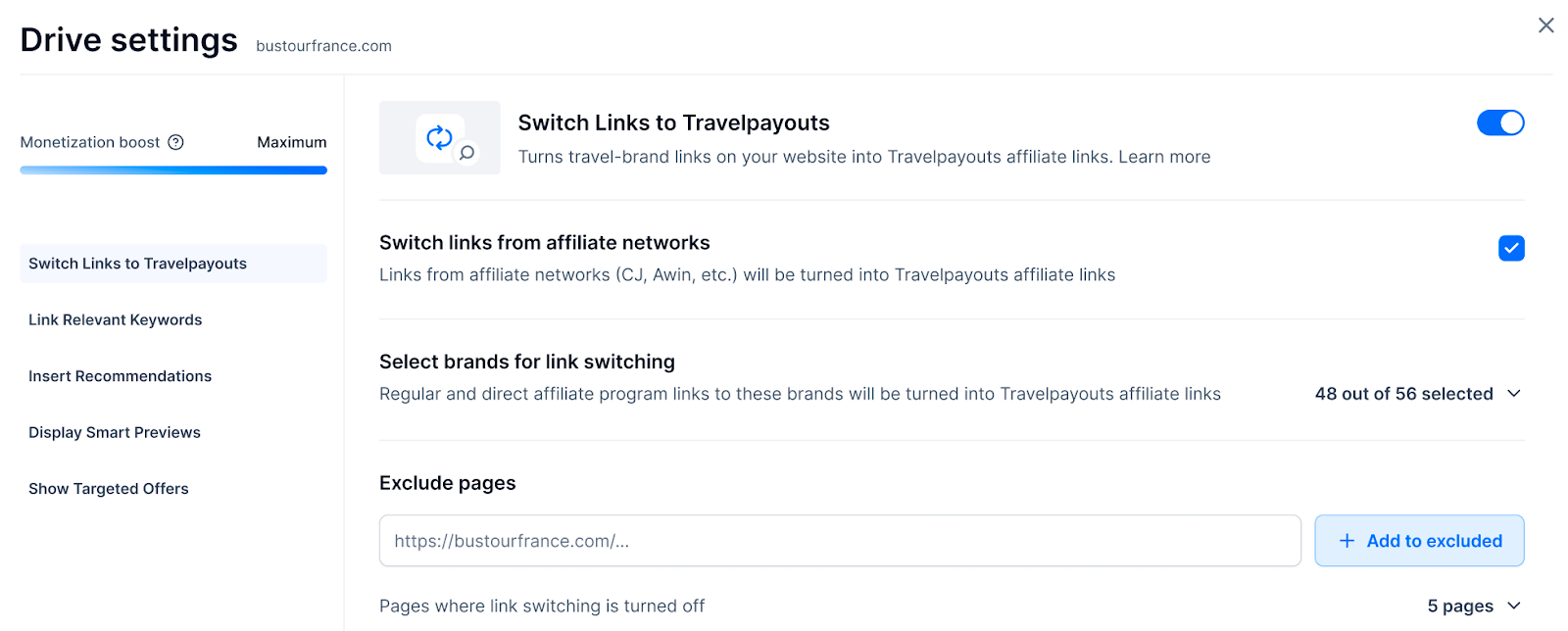
-
Switch links from affiliate networks
This setting allows you to automatically switch links from other affiliate networks into Travelpayouts affiliate links.Full list of affiliate netwroks- CJ
- AWIN
- Partnerize
- Avant
- Skimlinks
- ShareASale
- CommisionFactory
- Admitad
- Linksredirect
- Linkpizza
- OmgUK
- ProofPoint
- Invl
- LinkSynergy
- Chinesean
-
Select brands for link switching
You can select specific brands whose links you want to switch with Drive. Adding a brand to the list means that all links from the brand's direct affiliate program, as well as the regular non-affiliate links, will be turned into Travelpayouts affiliate links. You can only select brands if you have connected to their programs in the Travelpayouts program catalog.
By default, all brands that you’re connected to using the given projects will be automatically activated in the list. Each new travel brand program you connect to in the Travelpayouts catalog will automatically appear here, and Drive will process all related links. To exclude a brand, simply untick it in the list. -
Exclude pages
If you have some specific pages on your website where you don’t want Drive to switch the links, simply add their URLs to the list. The URLs should be full and include the domain.
You can delete the page from the list at all times. -
Enable or disable link switching
If you don’t want to switch links on your website to Travelpayouts affiliate links, you can turn this functionality off completely by clicking the toggle in the upper right corner of the screen.
You can turn it back on at any time.
Link relevant keywords
With this functionality Drive scans your articles and finds relevant keywords that can be seamlessly transformed into affiliate links. These links guide readers to products and services they are most likely to buy in and give you a possibility to earn from places you’d otherwise miss.
What changes on your site
- Some keywords in your articles may become clickable affiliate links
- Links are added only where they fit the content naturally
- The structure and readability of your content remain unchanged
Keyword linking settings
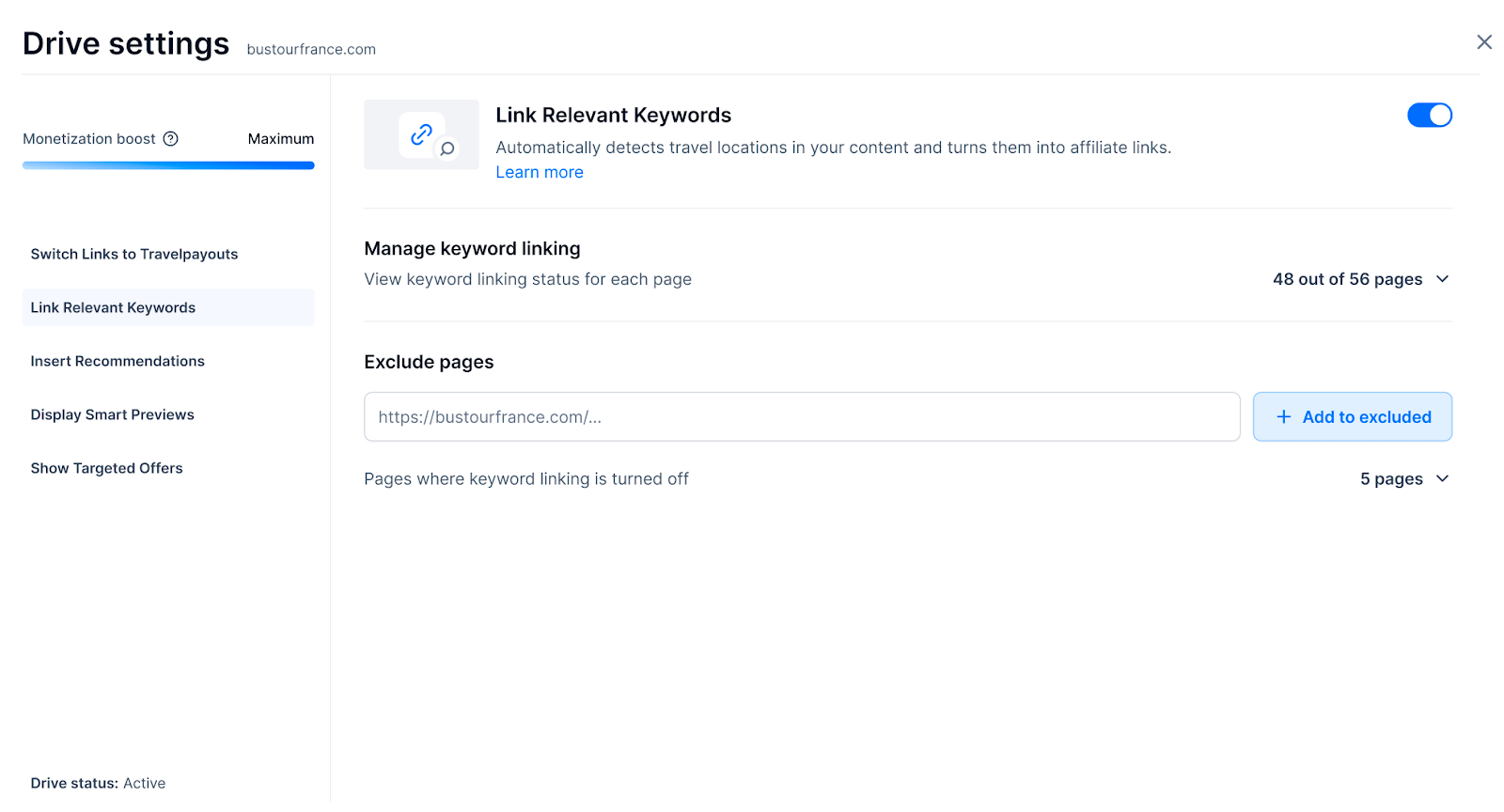
-
Manage keyword linking
Here you can- view how many links and on which pages of your website were added by Drive
- turn off keyword linking for specific pages. That way, Drive won’t link keywords on them.
-
Exclude pages
If you have some specific pages on your website where you don’t want Drive to link relevant keywords, simply add their URLs to the list. The URLs should be full and include the domain.
You can delete the page from the list at all times. -
Enable or disable keyword linking
If you don’t want to add new affiliate links on your website, you can turn this functionality off completely by clicking the toggle in the upper right corner of the screen.
You can turn it back on at any time.
Insert recommendations
Drive inserts eye-catching info boxes featuring top hotels, tours, and additional services relevant to the content of your article, making your blog even more helpful to readers.
What changes on your site
- Additional recommendation blocks may appear inside articles
- Placement is optimized automatically based on the content of the article and visitor behaviour
- Blocks are designed to blend into your content
- Visitors will see additional interesting offers that match the content of your article
Recommendation insertion settings
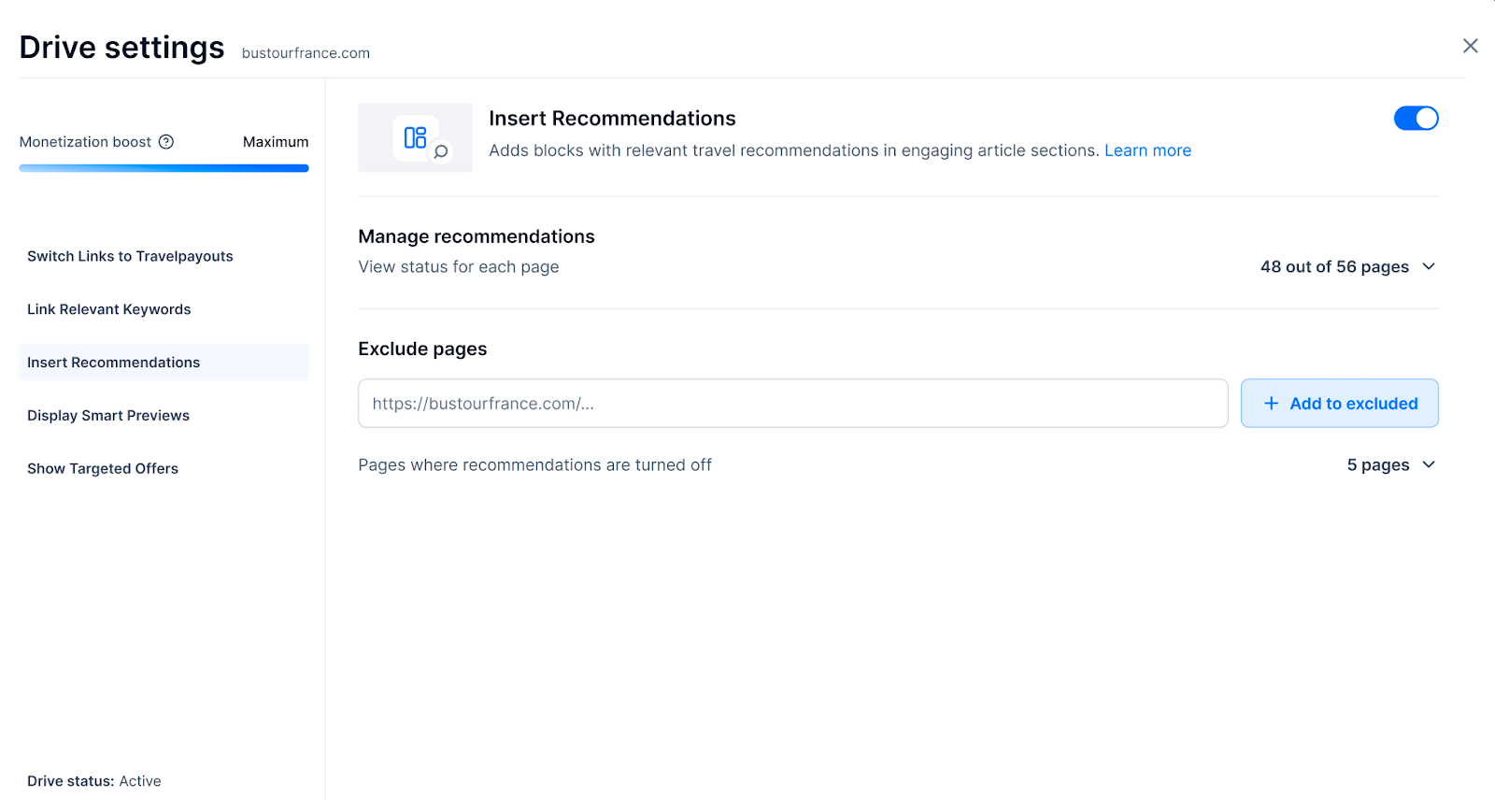
-
Manage recommendations
Here you can:- view how many blocks with recommendations and on which pages of your website were added by Drive
- turn off recommendations for specific pages. That way, Drive won’t insert recommendations on them.
-
Exclude pages
If you have some specific pages on your website where you don’t want Drive to insert recommendations, simply add their URLs to the list. The URLs should be full and include the domain.
You can delete the page from the list at all times. -
Enable or disable recommendations
If you don’t want to insert blocks with additional travel recommendations on your website, you can turn this functionality off completely by clicking the toggle in the upper right corner of the screen.
You can turn it back on at any time.
Display smart previews
When visitors hover over or tap on travel related links, Drive shows a small preview with key details about the offer that is behind that link, giving visitors additional information.
Previews allow readers to learn more without leaving your page, keeping them engaged.
What changes on your site
- A preview appears above or near the link when you hover over it
- No new links are added to the page, Drive adds previews only to existing links
Smart previews settings
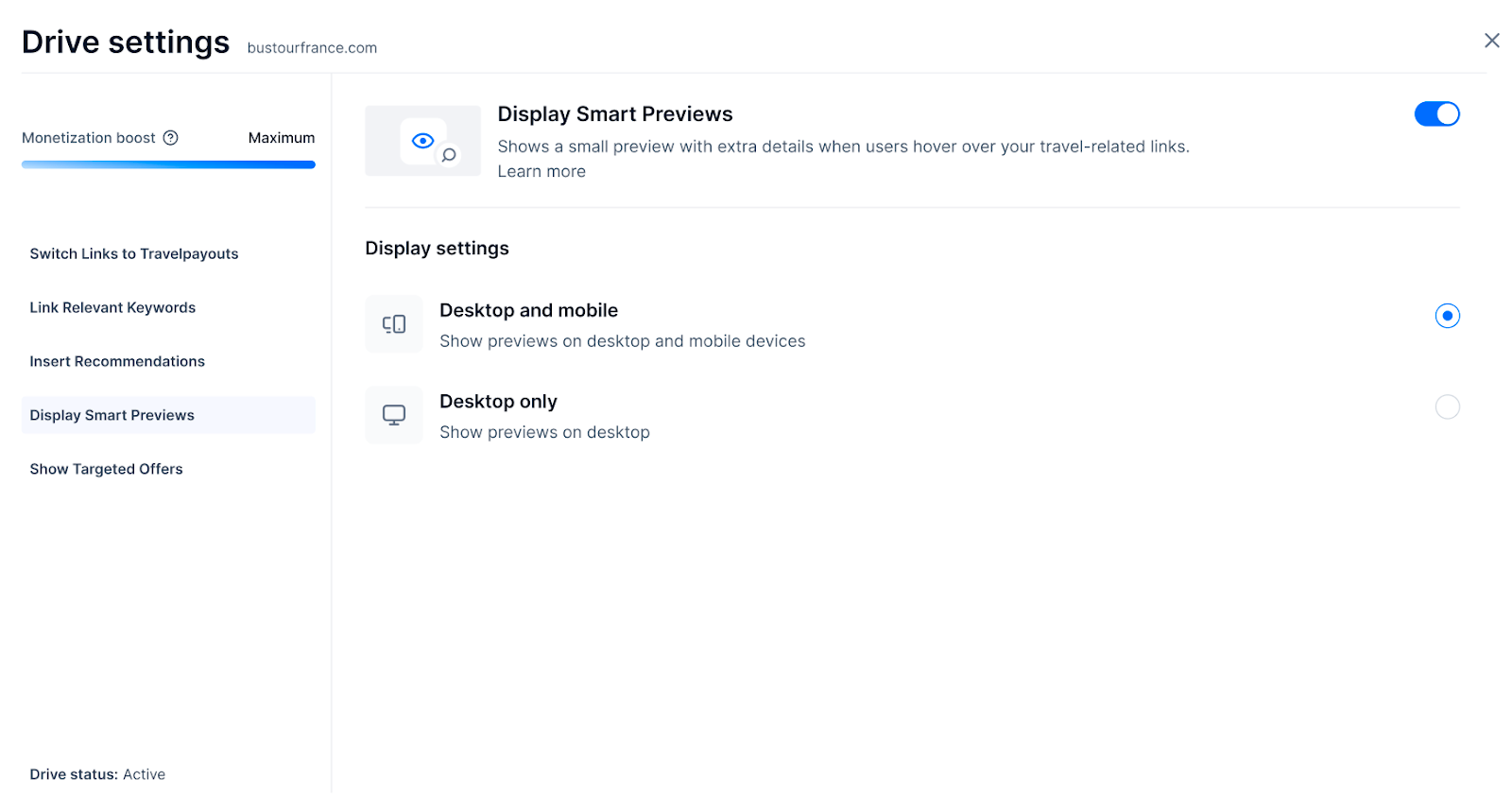
-
Display settings
Choose platforms to display smart previews, it can be:- Both desktop and mobile — this way visitors will see smart previews both on desktop and mobile versions of your website
- Desktop only — only desktop version will include previews
-
Enable or disable smart previews
If you don’t want to show previews on your website, you can turn this functionality off completely by clicking the toggle in the upper right corner of the screen. You can turn it back on at any time. - If you do not want to display a preview for a specific link, add the attribute data-tooltip-ignore=true to it.
Show targeted offers
Drive detects when a visitor of your website shows high intent to book and opens a relevant travel offer in a background browser tab. The logic is simple: you keep your audience on your site while softly introducing them to additional travel offers, giving them more value, and giving yourself a chance to earn
What changes on your site
When a visitor shows booking intent:
- Your page instantly opens in a new tab, exactly where the visitor left off
- In the original tab, a relevant travel brand website (such as a hotel or tour booking platform) opens automatically using your affiliate link
The same behavior repeats once more.
Limits and frequency
- The feature activates no more than twice per month per unique visitor
- It applies only to around 20% of your audience
Targeted offers settings
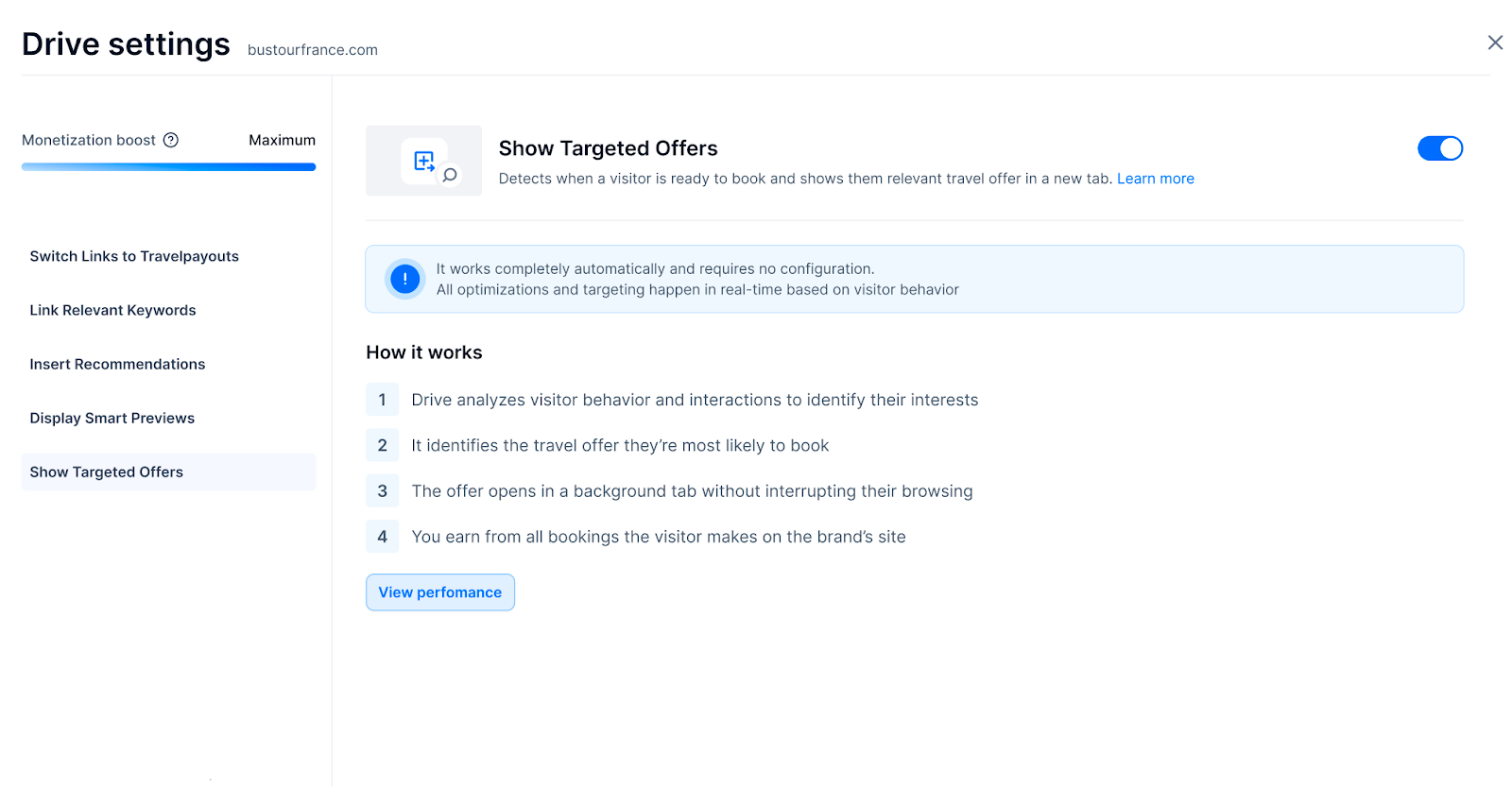
Targeted offers work completely automatically. That means that Drive is constantly analyzing the behavior of visitors on your pages and finds the offers that are best-fit specifically for them.
If you don’t want to show targeted offers on your website, you can turn this functionality off completely by clicking the toggle in the upper right corner of the screen. You can turn it back on at any time.
Where to check performance of Drive
Installing Drive on your website allows you to access extended Content Analytics report. It provides revenue-focused content analytics that show how your content and monetization tools perform.
Report is available in your Travelpayouts dashboard under Reports → Content Analytics. You can find more details in the following article: How to check statistics for Drive.
What you can see in Content analytics
- Which pages generate revenue
- Which tools and offers perform best
- How visitors interact with monetized elements
General Drive status
At the bottom left corner of the Drive settings page, you will see whether or not Drive is working correctly on your website.
Two statuses are available:
- Active — means that Drive is running smoothly and is working with your website based on your settings
- Attention required — means that something went wrong with the installation code. That can happen if you accidentally interfered with the code when maybe pasting some other scripts on your website. In that case you should reinstall Drive. Please use the How to install Drive article.
If something doesn’t work as expected
If you notice unexpected behavior:
- check that the Drive code is installed correctly
- make sure your website receives traffic
- review which functionalities are enabled
If the issue persists, contact support — our team can help you review your setup and settings.